Monday, March 6, 2017

ISNULL Vs NULLIF

ISNULL : If first expression is NOT NULL then returns first expression value, If 1st Expression is NULL and 2nd expression is NOT NULL then it returns 2nd expression value, If both expressions are NULL then return NULL value.

DECLARE @A INT,@B INT,@C INT
SET @A=1
SET @B=NULL
SET @C=2

SELECT ISNULL(@A,@B), ISNULL(@B,@A), ISNULL(@B,@B), ISNULL(@A,@A)
GO

Result : 


NULLIF : Returns NULL value if the two specified expressions are equal or both expressions are NULL or first expression is NULL otherwise first expression data.

DECLARE @A INT,@B INT,@C INT
SET @A=1
SET @B=NULL
SET @C=2

SELECT NULLIF(@A,@B), NULLIF(@B,@A), NULLIF(@B,@B), NULLIF(@A,@A), NULLIF(@A,@C), NULLIF(@C,@A)
GO

Result : 

Wednesday, March 1, 2017

Table Variable Vs Temp Table Vs Global Temp Table

Comparative Analysis of Temporary Table and Table Variable based on different aspects.

1. USER DEFINED FUNCTION
Temporary Tables are not allowed in User Defined Functions, whereas Table Variables can be used in User Defined Functions.

Demo on Table Variable : User defined Functions allow Table Variables in it.


Demo on Temporary Table : User defined Functions doesn’t allow Temporary Table in it.


2. INDEXES
Table Variables doesn’t allow the explicit addition of Indexes after it’s declaration, the only means is the implicit indexes which are added as a result of the Primary Key or Unique Key constraint defined during Table Variable declaration.
On the other hand Temporary table supports adding Indexes explicitly after Temporary Table creation and it can also have the implicit Indexes which are the result of Primary and Unique Key constraint.

Demo on Temporary Table :


Demo on Table Variable :


3. SCOPE
Scope of the Table variable is the Batch or Stored Procedure in which it is declared. And they can’t be dropped explicitly, they are dropped automatically when batch execution completes or the Stored Procedure execution completes.
Whereas, There are two types of Temporary Tables, one Local Temporary Tables whose name starts with single # sign and other one is Global Temporary Tables whose name starts with two # signs.
Scope of the Local Temporary Table is the session in which it is created and they are dropped automatically once the session ends and we can also drop them explicitly. If a Temporary Table is created within a batch, then it can be accessed within the next batch of the same session. Whereas if a Local Temporary Table is created within a stored procedure then it can be accessed in it’s child stored procedures, but it can’t be accessed outside the stored procedure.
Scope of Global Temporary Table is not only to the session which created, but they will visible to all other sessions. They can be dropped explicitly or they will get dropped automatically when the session which created it terminates and none of the other sessions are using it.

Demo on Table Variable :


--Try to Access the Table Variable outside the batch
--but within the same session scope


Demo on Local Temporary Table :


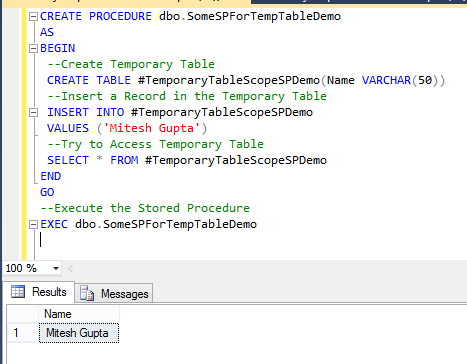
Another demo on Stored Procedures : This example demonstrates that a Local Temporary Table created within a stored procedure can’t be accessed outside the stored procedure scope.


Try to Access the Temporary Table created during the SP

Below are some more examples where I am also sharing code to understand difference : 

Demo 1 : This example demonstrates that a Table Variable created within a stored procedure can’t be accessed outside the stored procedure scope.

CREATE PROCEDURE dbo.SomeSPForTableVariableDemo
AS
BEGIN
 --Declare Table Variable
 DECLARE @TableVariableScopeSPDemo TABLE(Name VARCHAR(50))
 --Insert a Record in the Temporary Table
 INSERT INTO @TableVariableScopeSPDemo
 VALUES ('Mitesh Gupta')
 --Try to Access Table Variable
 SELECT * FROM @TableVariableScopeSPDemo
END
GO

Try to execute the above stored procedure which creates a Table Variable and a statement accessing the Table Variable immediately after the Stored Procedure within the same batch as shown in the below script. This results in a compilation error.

--Execute the Stored Procedure
EXEC dbo.SomeSPForTableVariableDemo
--Try to Access the Table Variable created during the SP
--SomeSPForTableVariableDemo execution by previous statement
SELECT * FROM @TableVariableScopeSPDemo
GO

Try to execute the above stored procedure which creates a Table Variable and a statement accessing the Table Variable created in the SP in separate batches one after another but in the same session as shown below. In such scenario the SP execution succeeds, but the statement trying to access the Table variable outside SP in the next batch errors-out.

--Execute the Stored Procedure
EXEC dbo.SomeSPForTableVariableDemo
GO
--Try to Access the Table Variable created during the SP
--SomeSPForTempTableDemo execution by previous statement
 SELECT * FROM @TableVariableScopeSPDemo
GO

Demo 2: This example demonstrates that a Local Temporary Table created in the Parent Stored Procedure can be accessed by it’s child stored procedures.

-------------Create ParentSP----------------
CREATE PROCEDURE dbo.ParentSPForTempTableDemo
AS
BEGIN
 --Create Temporary Table
 CREATE TABLE #TemporaryTableScopeSPDemo(Name VARCHAR(50))
 --Insert a Record in the Temporary Table
 INSERT INTO #TemporaryTableScopeSPDemo
 VALUES ('Mitesh Gupta')
 --CALL Child SP
 EXEC dbo.ChildSPForTempTableDemo
END
GO
-------------Create ChildSP----------------
CREATE PROCEDURE dbo.ChildSPForTempTableDemo
AS
BEGIN
 --Try to Access Temp Table created in the Parent SP
 SELECT * FROM #TemporaryTableScopeSPDemo
END
GO
----------Execute the ParentSP----------
EXEC dbo.ParentSPForTempTableDemo

Demo 3 : This example demonstrates that a Table Variable Created in the Parent SP is not accessible by it’s child stored procedures. Basically, Sql Server doesn’t allow us to Create a Child Stored Procedure accessing the Table Variable Created in the Parent SP.

-------------Create ParentSP----------------
CREATE PROCEDURE dbo.ParentSPForTableVariableDemo
AS
BEGIN
 --Create Temporary Table
 CREATE TABLE @TableVariableScopeSPDemo(Name VARCHAR(50))
 --Insert a Record in the Temporary Table
 INSERT INTO @TableVariableScopeSPDemo
 VALUES ('Mitesh Gupta')
 --CALL Child SP
 EXEC dbo.ChildSPForTableVariableDemo
END
GO
-------------Create ChildSP----------------
CREATE PROCEDURE dbo.ChildSPForTableVariableDemo
AS
BEGIN
 --Try to Access the Table variable Created in Parent SP
 SELECT * FROM @TableVariableScopeSPDemo
END
GO


Thank you for reading!

Sunday, February 26, 2017

@@IDENTITY Vs SCOPE_IDENTITY() Vs IDENT_CURRENT

@@IDENTITY
@@IDENTITY will return the last identity value entered into a table in your current session.
While @@IDENTITY is limited to the current session, it is not limited to the current scope.
If you have a trigger on a table that causes an identity to be created in another table,
you will get the identity that was created last, even if it was the trigger that created it.

SCOPE_IDENTITY() :
It returns the last IDENTITY value produced on a connection and by a statement in the same scope,
regardless of the table that produced the value.
SCOPE_IDENTITY(), like @@IDENTITY, will return the last identity value created in the current session,
but it will also limit it to your current scope as well.
In other words, it will return the last identity value that you explicitly created,
rather than any identity that was created by a trigger or a user defined function.

IDENT_CURRENT(‘tablename’) :
It returns the last IDENTITY value produced in a table, regardless of the connection that created the value,
and regardless of the scope of the statement that produced the value.
IDENT_CURRENT is not limited by scope and session; it is limited to a specified table.
IDENT_CURRENT returns the identity value generated for a specific table in any session and any scope.

Syntax :

SELECT @@IDENTITY

SELECT SCOPE_IDENTITY()

SELECT IDENT_CURRENT('[dbo].[TestTable]')

Now let us have a quick look on queries to understand it more....

--Creating table and Trigger :


Thank you for reading!


Wednesday, February 22, 2017

Triggers : After Trigger (Insert, Update, Delete) and Instead Of Trigger

Triggers are database operations which are automatically performed when an action such as Insert, Update or Delete is performed on a Table or a View in database.

Triggers are associated with the Table or View directly i.e. each table has its own Triggers.

There are two types of Triggers.
1) After Triggers : These triggers are executed after an action such as Insert, Update or Delete is performed.
2) Instead of Triggers : These triggers are executed instead of any of the Insert, Update or Delete operations.

For example, let’s say you write an Instead of Trigger for Delete operation, then whenever a Delete is performed the Trigger will be executed first and if the Trigger deletes record then only the record will be deleted.

Let us discuss these two type of Triggers by example.

Here are some After Triggers examples : 

Scenario 1 : Insert Triggers
Below is an example of an After Insert Trigger. Whenever a row is inserted in the Student Table, the following trigger will be executed. The newly inserted record is available in the INSERTED table. The following Trigger is fetching the StudentId of the inserted record and the fetched value is inserted in the StudentLog table.


Scenario 2 : Update Trigger
Below is an example of an After Update Trigger. Whenever a row is updated in the Student Table, the following trigger will be executed. The updated record is available in the INSERTED table. The following Trigger is fetching the StudentId of the updated record. In order to find which column is updated, you will need to use UPDATE function and pass the Column name of the Table to it. The UPDATE function will return TRUE for a Column if its value was updated else it will return false.Finally based on which column of the record has been updated a record (containing the CustomerId and the appropriate action) is inserted in the StudentLog table.


Now let us update two columns of the table and see the result set. That will insert 2 rows (row number 3 & 4) in log table with the entry of updated column names as below :


Now let us update one column of the table and see the result set. That will insert 1 rows (row number 5) in log table with the entry of updated column name as below :


Scenario 3 : Delete Trigger
Below is an example of an After Delete Trigger. Whenever a row is deleted in the Student Table, the following trigger will be executed. The deleted record is available in the DELETED table. The following Trigger is fetching the StudentId of the deleted record and the fetched value is inserted in the StudentLog table.


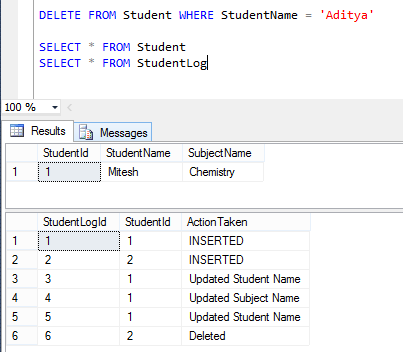
Now let us Delete one row of the table and see the result set. That will insert 1 rows (row number 6)  in log table with the entry of deleted column Id as below :


Instead Of Triggers :

Below is an example of an Instead Of Delete Trigger. Whenever anyone tries to delete a row from the Student table the following trigger is executed. Inside the Trigger, I have added a condition that if record has StudentId value 1 then such a record must not be deleted and an error must be raised. Also a record is inserted in the StudentLog table.
If the StudentId value is not 1 then a delete query is executed which deletes the record permanently and a record is inserted in the StudentLog table.


Now, when we try to delete StudentId 1, we'll get below error message :


While,  when we try to delete other than StudentId 1 data, it gets successfully deleted :


DROP TABLE Student
DROP TABLE StudentLog

Thank you for reading!!!!


Wednesday, January 11, 2017

Cannot drop database Error Msg 3702

I tried to remove my recently created database, I got following error.

Msg 3702, Level 16, State 3, Line 2
Cannot drop database “DataBaseName” because it is currently in use.

The common mistake was the connection open with this database and trying to drop it.
The following commands will raise above error:
USE DataBaseName;
GO
DROP DATABASE 
DataBaseName;
GO
Solution:
The following commands will not raise an error and successfully drop the database:

USE Master;
GO
DROP DATABASE DataBaseName;
GO

If you want to drop the database use master database first and then drop the database.

NOTE : Sometimes this code does not work and we are still getting the same issue. In that case we have to close the SQL Server and then retry. I am sure it works.
Basically when you restart the server that will drop all the open connection and so you'll be able to drop it.  :)

Wednesday, September 21, 2016

COALESCE Function

COALESCE is a function where we can pass multiple parameters and get the first not null value.
For example, Sometimes we have multiple units of a product like Unit1,Unit2,Unit3,Unit4 in the same table and any one of them is filled with data. Now we have to pick any one of them which should not be NULL, in this condition we can use COALESCE.

Another example : 

DECLARE @x INT = NULL
DECLARE @y INT = NULL
DECLARE @z INT = 2
DECLARE @a INT = 3
DECLARE @b INT = 4

SELECT COALESCE(@x,@y,@z,@a,@b)

Rusult : 2

Now let us have a look at different scenarios When the first not null parameter's data type is different datatype parameter and this function will give an error : 

DECLARE @x INT = NULL
DECLARE @y INT = NULL
DECLARE @z VARCHAR(20) = 'q'
DECLARE @a INT = 3
DECLARE @b INT = 4

SELECT COALESCE(@x,@y,@z,@a,@b)

Here you'll get an error message : 
Msg 245, Level 16, State 1, Line 9
Conversion failed when converting the varchar value 'q' to data type int.

Thursday, December 19, 2013

Create Linked Server in SQL Server

Follow the below steps to create Linked Server : 

Step 1 : Open SQL Server Management Studio
Step 2 : Expand “Server Objects”
Step 3 : Right Click on “Linked Servers” and then click on “New Linked Server”


Step 4 : Write the appropriate Linked Server Name and also click on Radio Button “SQL Server” under general tab :


Step 5 : Now go to Security Tab on the same window and click on Add button :


Step 6 : Once we click on add button, a new line will be added with few options :
1-      Local Login : you have to fill your current instance (server) name.
2-      Impersonate : If we have “Linked Server” with Windows Authentication then we have to click on this checkbox, otherwise not.
                  3-      Remote User/ Remote Password : : If we have “Linked Server” with Server Authentication                     then we have to enter username and password in the appropriate boxes.


Step 7 : Now click on OK button to link the server with current instance.

Step 8 : Now you can see your linked server in “Object Explorer” under the path : “Server Objects\Linked               Servers\<your Linked Server Name>” 


We can also create a linked server by using T-SQL query :

EXEC sp_addlinkedserver 
@server=N'COMPUTER_A',     -- Enter Linked Server Name
@srvproduct=N'',             -- Not Needed
@provider=N'SQLNCLI',     -- Enter the SQL Server Driver Here
@datasrc=N'COMPUTER_A\SQLEXPRESS';  -- Enter the Instance Name Here


Posted By : MITESH GUPTA